Using the Flashpay plugin for Tilda CMS
Overview
The Flashpay plug-in for Tilda CMS allows you to accept payments from customers on your Tilda-based websites. The plug-in is installed via the Tilda interface and allows opening the Payment Page payment form for customers and ensuring all necessary actions for payment processing with regard to the interaction with both customers and the Flashpay payment platform (with all necessary information sent and received).
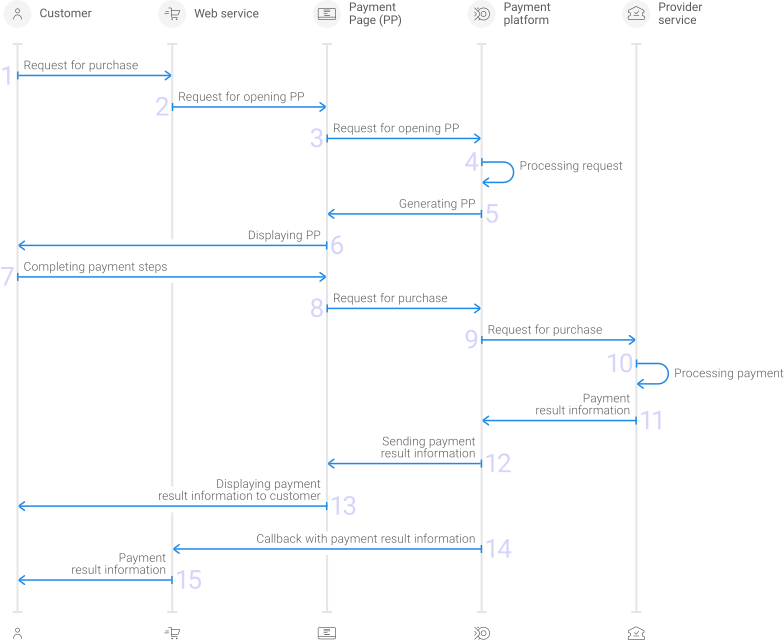
- The customer initiates the payment on the web service side.
- PS generates a request for opening Payment Page.
- The payment platform accepts the request for opening Payment Page.
- The payment platform performs initial request processing that includes validation whether all required parameters are available and signature is correct.
- The requested Payment Page is generated by the payment platform as specified in the project settings and request parameters.
- The payment form is displayed to the customer.
- The customer completes all the steps required to complete the payment.
- The payment platform accepts the request for opening.
- The payment platform processes the request and forwards it to the payment environment.
- Payment is processed by the payment environment.
- The payment environment sends a callback with payment result information to the payment platform.
- The payment platform sends the payment result information to Payment Page.
- The result is displayed to the customer on Payment Page.
- The payment platform sends the callback with payment result information to the web service.
- The result is displayed to the customer in the web service.
Installation and setup
Before installing the Flashpay plug-in, you are required to create your own site in Tilda and submit an application for connecting to the payment platform.
To install and configure the Flashpay plug-in:
- Log on to you account at Tilda: https://tilda.cc.
- In the top menu, select Dashboard, and then click Edit website.
- On the site editor page, click Site settings.
- In the left pane, select plug-ins, and then select in the central pane.
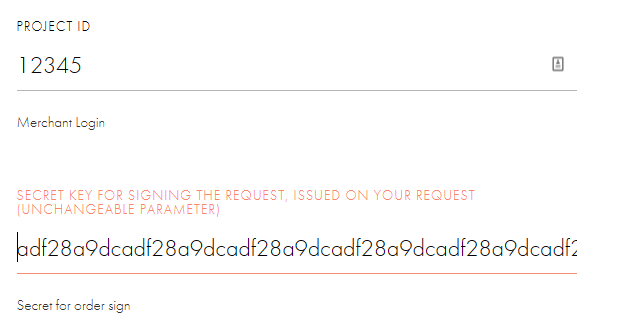
- Enter project ID and secret key you received from the Flashpay technical support into the Project ID and Secret key for signing the request, issued on your request... boxes, respectively.
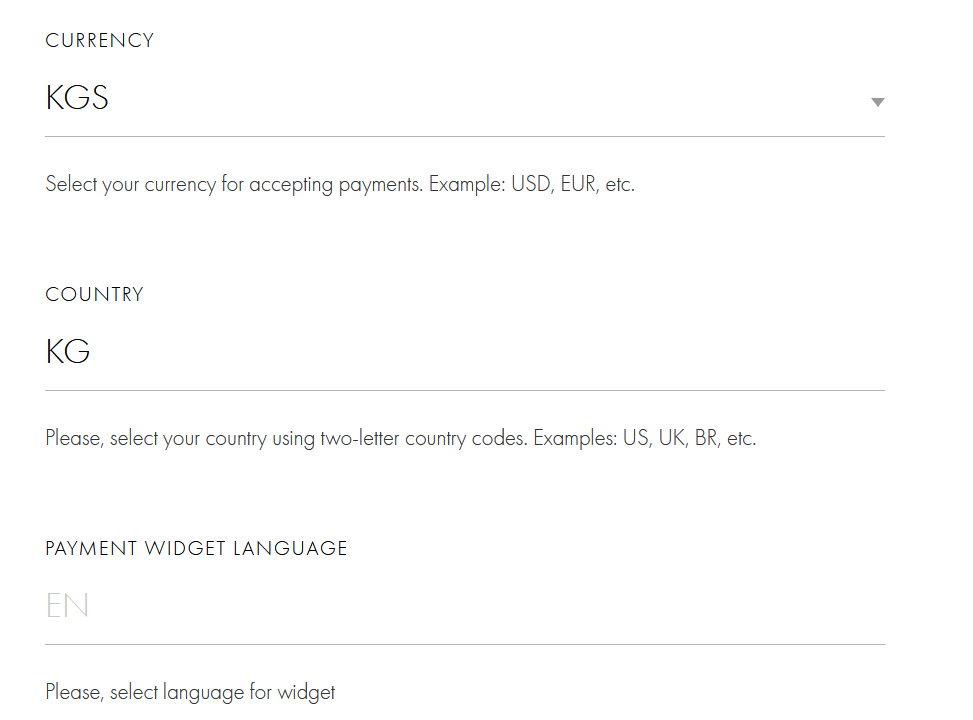
- In the Currency, Country and Payment widget language boxes, enter, respectively, the primary payment currency, country, and language to use for opening the page with the payment form.
- In the Success URL box, specify the URL of the page to redirect the customer to after the payment is successfully completed. In the Failure URL box, specify the URL of the page to redirect the customer to when the payment is declined.
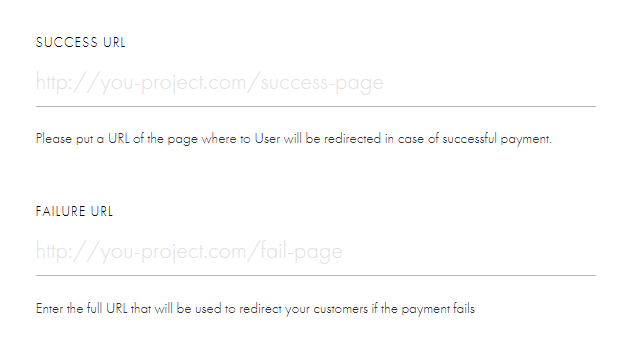
These parameters are optional, but its recommended to specify them to gracefully redirect the customer back to your online store.
If you leave these boxes blank, the customer will not be redirected back to your site and will remain on the payment service page.
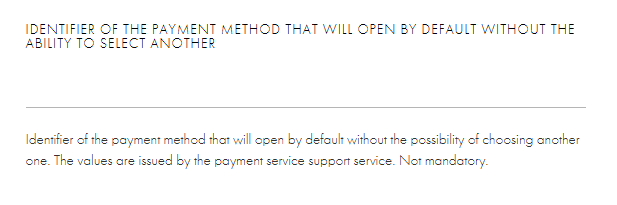
- If you want the payment page to skip the payment method selection screen and open with the payment method pre-selected, enter the method ID in the Identifier of the payment method that will open by default box.
For the list of payment methods IDs, see Payment method codes.
- Click Save.
The Flashpay plug-in is set up and ready for use.
If you have any questions regarding setup and usage of the Flashpay plug-in for Tilda, feel free to contact the technical support at Flashpay.