Using Flashpay payments for PrestaShop CMS
Overview
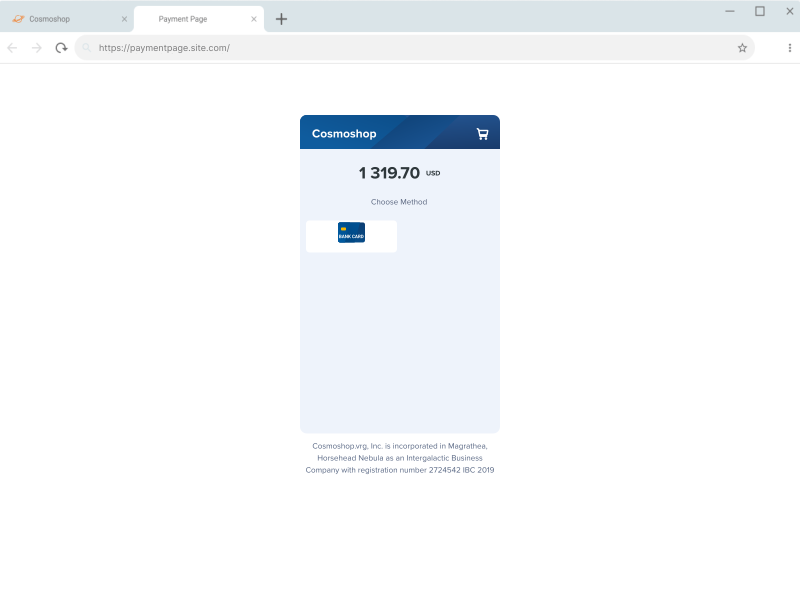
This article covers the information about using the payment plug-in Flashpay payments version 1.0.2. This plug-in version can be used in web services that are based on the PrestaShop CMS version 8.1.5 or later and allows opening the Payment Page payment form of Flashpay for customers and ensuring all necessary actions for payment processing.
The Flashpay payments plug-in is installed via the PrestaShop interface and allows opening the Payment Page payment form of Flashpay for customers and ensuring all necessary actions for payment processing with regard to the interaction with both customers and the Flashpay payment platform (with all necessary information sent and received).
General information
Capabilities
With the Flashpay payments plug-in, the following is available:
- Setting up the capability to open the Payment Page payment form of Flashpay in the web service on the fly.
For this, you only need to take a few actions in the interface of the PrestaShop CMS.
-
Testing the operation of the payment form and the capabilities of payment processing.
For this, you can get a test project in the Flashpay payment platform (by submitting an application on the company's main site) and use the identifier and secret key of this project.
- Processing one-time one-step purchases.
For resolving all organisational issues, contact the Flashpay account manager.
- Issuing partial and full refunds for purchases, which were processed with the help of the plug-in.
For this, you can use the PrestaShop interface and, if relevant, the interfaces of the Flashpay payment form (the user interface Dashboard and the Gate API). Along with that, when using the interfaces of the Flashpay payment platform, order information in the PrestaShop interface is updated only if conditions for sending callbacks from the payment platform have been configured (details).
- Monitoring the information about payments, which were processed with the help of the plug-in.
For this, you can use the PrestaShop and, if relevant,—the Data API and the Dashboard interface of Flashpay.
- Managing orders with related purchases processed with the help of the plug-in.
For this, you can use the PrestaShop interface that allows cancelling these orders and changing their statuses manually (if necessary).
- Configuring the parameters of the Payment Page operation and adjusting the form to the web service specifics, as well as using various capabilities provided by Flashpay.
This range of capabilities allows you to adjust to various business specifics, flexibly configure user scenarios, and ensure a high rate of the payment form conversion and payment acceptance. For setting up and using the capabilities provided by Flashpay, refer to the technical documentation on this portal and, if necessary, contact the Flashpay specialists.
Workflow
The following diagram illustrates the workflow of executing purchases with the use of the Flashpay payments plug-in. The workflow involves the customer, the merchant's web service with the built-in plug-in, the Payment Page payment form, the payment platform, and the payment environment. On the web service side, the opening of Payment Page is requested and automatic interaction with the payment platform is carried out in accordance with the plug-in parameters.
The workflow of executing purchases with the use of the Flashpay payments plug-in is provided below.
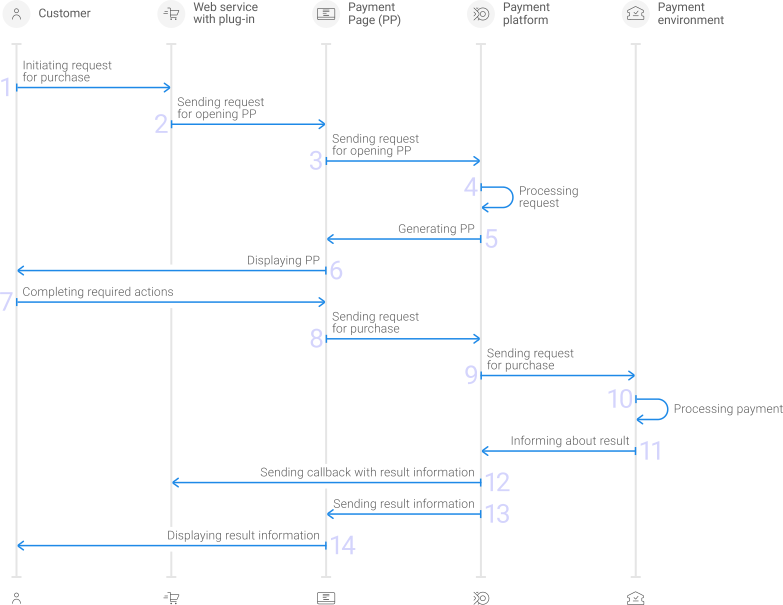
- On the web service side, the customer selects the option to pay with the use of the Flashpay payments plug-in.
- The request for opening the Payment Page payment form is automatically generated and sent to the payment platform via the plug-in.
- The request for opening Payment Page is received in the payment platform.
- The request is processed in the payment platform and checked for correctness.
- The necessary actions are performed on the payment platform side to prepare for displaying the payment form to the customer.
- The payment form is displayed to the customer.
- The customer completes the required actions for purchase and confirms the purchase.
- The final purchase request (with all necessary data) is received in the platform.
- The request is sent to the payment environment.
- The request is processed in the payment environment. And if necessary, additional actions are performed on the side of the platform and the customer (for example, for the 3‑D Secure authentication).
- The purchase result information is sent from the payment environment to the payment platform.
- The callback with the purchase result information is sent from the payment platform to the web service. The callback is automatically processed with the help of the plug-in, thus the order information is updated in the PrestaShop interface.
- The purchase result information is sent from the payment platform to Payment Page.
- The purchase result information is displayed to the customer in the Payment Page payment form.
Within this workflow, the Flashpay payments plug-in ensures automatic invocation of Payment Page on the web service side and automatic interaction with the payment platform in accordance with the defined operational parameters.
For interaction with customers when processing purchases, the payment form can be opened in a separate tab or in a modal window. In both cases, the customer first confirms they are ready to proceed to payment (using the PLACE ORDER button in the web service), then specifies the needed data and confirms the payment to be created in the Flashpay platform (using the corresponding fields and the Pay button in the payment form that opens).
While working with the Flashpay
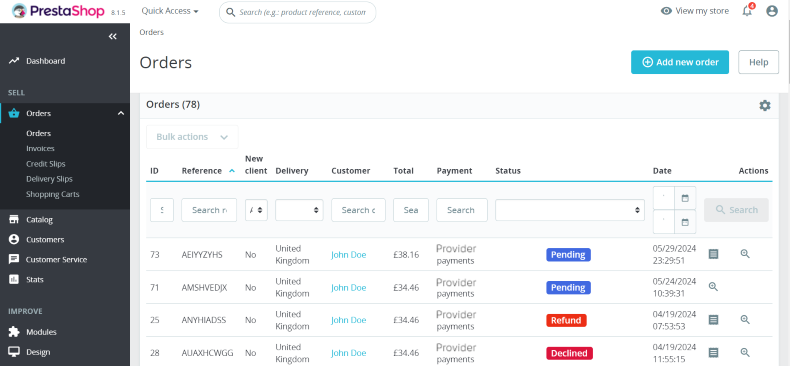
payments plug-in, keep in mind that orders in the web service and payments in the payment platform have different identifiers and statuses. The following statuses are used for the orders: Orders are assigned ordinal numbers (for example, 71) and statuses associated with payment statuses in the Flashpay platform:
Flashpay: Pendingif the payment has an intermediate status.Flashpay: Approvedif the payment has been processed.Flashpay: Declinedif the payment has been declined.Flashpay: Partially refundedif a partial refund has been made within the order.Flashpay: Refundif a full refund has been made within the order.
Similarly, payments on the payment platform side are assigned identifiers that correspond to the numbers of orders in the web service and statuses used by Flashpay (details).
Installation
To start using the Flashpay Payments plug-in version 1.0.2, you need to install it.
If an earlier version of this plug-in was previously used, before updating the plug-in, it is recommended to do the following:
- Copy the values of parameters of the plug-in operation for further use with the new plug-in version.
This is because updating the plug-in leads to clearing the parameters which means you have to set up them again.
- Deactivate the earlier version of the plug-in.
This can be done via the register with the installed plug-ins in the PrestaShop interface, using the Uninstall button.
To install the plug-in, download its zip file from GitHub and proceed in the PrestaShop interface as follows:
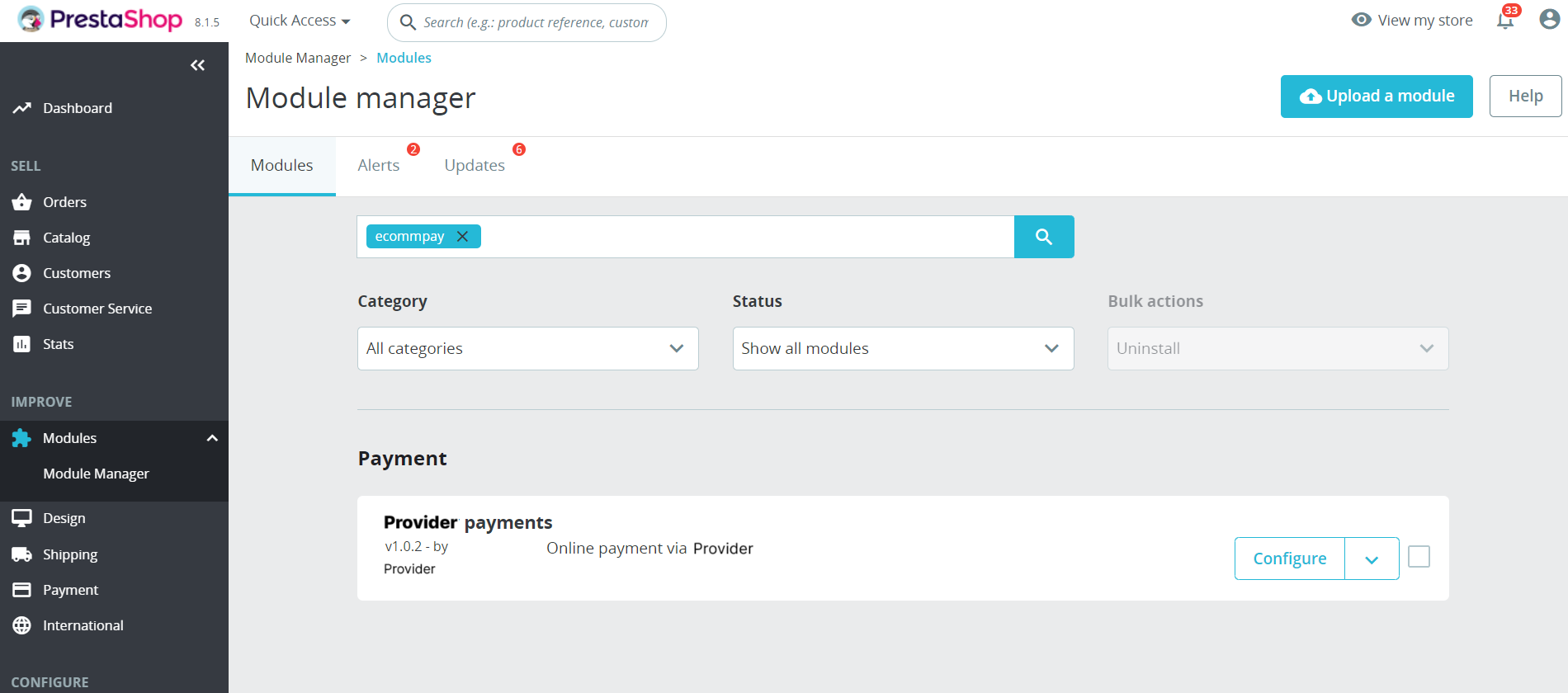
- Select the Modules section and the Module Manager item in the IMPROVE section of the navigation menu.
- Click the Upload a module button on the Module Manager page and select the previously downloaded zip file of the plug-in.
- Wait for the completion of the download and automatic installation of the plug-in.
Upon the completion of these steps, you can find the Flashpay payments plug-in panel on the Module Manager page and proceed to working with the plug-in.
Testing
Overview
Testing the plug-in operation and various payment scenarios without actual debiting of funds is possible via the test environment of the Flashpay payment platform. You can connect to the platform by using the identifier and secret key of the test project received from Flashpay. Along with that, it is necessary to provide the Flashpay technical support specialists with the name of the web service for which the plug-in from Flashpay will be used, the web service URL, and the payment currency.
Keep in mind that when you use the testing environment of the Flashpay payment platform, the plug-in will be connected to the web service and will become available as a payment option to the customers. Therefore, it is recommended that if you need to connect the plug-in to the web service in production mode, test the plug-in operation during the low-load time and warn your customers about planned maintenance.
Parameters setup
To prepare the plug-in for testing, decide on the preferable testing option and set up the plug-in in the PrestaShop interface. For this, proceed as follows:
- Go to the plug-in operation parameters in the PrestaShop interface.
For this, proceed as follows:
- Select the Modules section and the Module Manager item in the IMPROVE section of the navigation menu.
- Search for the Flashpay payments plug-in on the page that opens and click the Configure button in the corresponding line.
- Set up the basic parameters of the plug-in operation in the General Settings tab:
- Project ID—the test project identifier.
- Secret key—the test project key.
- Language —the language in which the payment form is displayed.
- Set up the general parameters for using the payment method on its setup tab:
- Enabled—the setting for enabling a payment method to work via the plug-in.
To enable a method, select the Enabled checkbox. By default, the checkbox is not selected.
- Title—the payment method name displayed on the checkout page in the web service.
- Description—the text displayed to the customers when they select a certain payment method.Note: If necessary, the fields Title and Description can be used for notifying customers that the plug-in is operating in the test mode.
- Enabled—the setting for enabling a payment method to work via the plug-in.
- Save the parameters of the plug-in operation.
For this, click the Save Settings button.
Processing test purchases
When testing the plug-in operation, you can process test purchases in the web service and obtain information about them via the PrestaShop, in the Orders subsection of the Orders section. Along with that, you can use special payment credentials that allow testing particular payment scenarios.
To test card payments, you can use the credentials of test cards. For testing according to the shortest scenarios (without the emulation of the 3‑D Secure authentication), the following numbers of cards can be used:
4000 0000 0000 0077—for a purchase to be processed4111 1111 1111 1111—for a purchase to be declined
For more comprehensive testing, it is possible to use extended test data for card payments (details). (including scenarios with the 3‑D Secure authentication) provided in the Test cards article.
Processing test refunds
Overview
After processing test purchases, you can make test refunds via the PrestaShop interface and, if relevant, via the Gate API and Dashboard from Flashpay. Refunds can be made for payments that meet two conditions. First, they must be the payments made using methods that support refunds. Second, they must be the payments for which the full amount has not been refunded—on the payment platform side, such payments are assigned statuses success, partially reversed, or partially refunded. You can monitor the execution of refunds through the Flashpay platform interfaces and the PrestaShop interface. Also, note that all information about test refunds provided in this subsection is also relevant for issuing refunds in the production environment.
Ensuring data synchronisation
When refunds are initiated via the interfaces of the Flashpay payment platform (Dashboard and the Gate API), order information in the PrestaShop interface is updated only if conditions that trigger callbacks from the payment platform have been configured. Thus, if the merchant needs to issue refunds via the Flashpay platform interfaces and monitor the order information via the PrestaShop interface, it is important to ensure that callbacks can be sent and received for automatic updates of information in the PrestaShop interface. For this, the following conditions must be met:
If the merchant needs to issue refunds via the Flashpay platform interfaces, it is important to ensure automatic updates of information in the PrestaShop interface. For this, the following conditions must be met:
- For the project in use, conditions that trigger callbacks sent from the payment platform to the PrestaShop CMS, to the URL specified on the page with the plug-in operation parameters (in the format of
https://<sitedomain>/en/module/Flashpay/callback), are configured.Information about working with conditions for sending callbacks is provided in a separate article.
- The configured conditions for sending callbacks do not have duplicates with the same payment type, event type, and payment method code.
Procedures
Refunds are available for purchases that have been processed and not fully refunded. On the Flashpay payment platform side, such purchases have the statuses success, partially reversed, and partially refunded. You can monitor the processing of refunds via the interfaces of the Flashpay platform and the PrestaShop interface.
To make a refund via the PrestaShop interface, proceed as follows:
- Open the tab of the order that should be refunded.
For this, select the Orders item in the similarly-named section of the SELL section and click the line of the needed order.
- Initiate the refund.
For this, proceed as follows:
- Open the Products panel by clicking the Partial refund button.
- Specify the refund amount in the Amount (Tax included) field and select the Refund via Flashpay checkbox.
- Click the Partial refund button in the bottom right corner of the Products panel.
- Ensure that the refund has been made.
For this, you can check that the order status has changed to
Flashpay: Partially refunded(in case of a partial refund) orFlashpay: Refund(in case of a full refund).
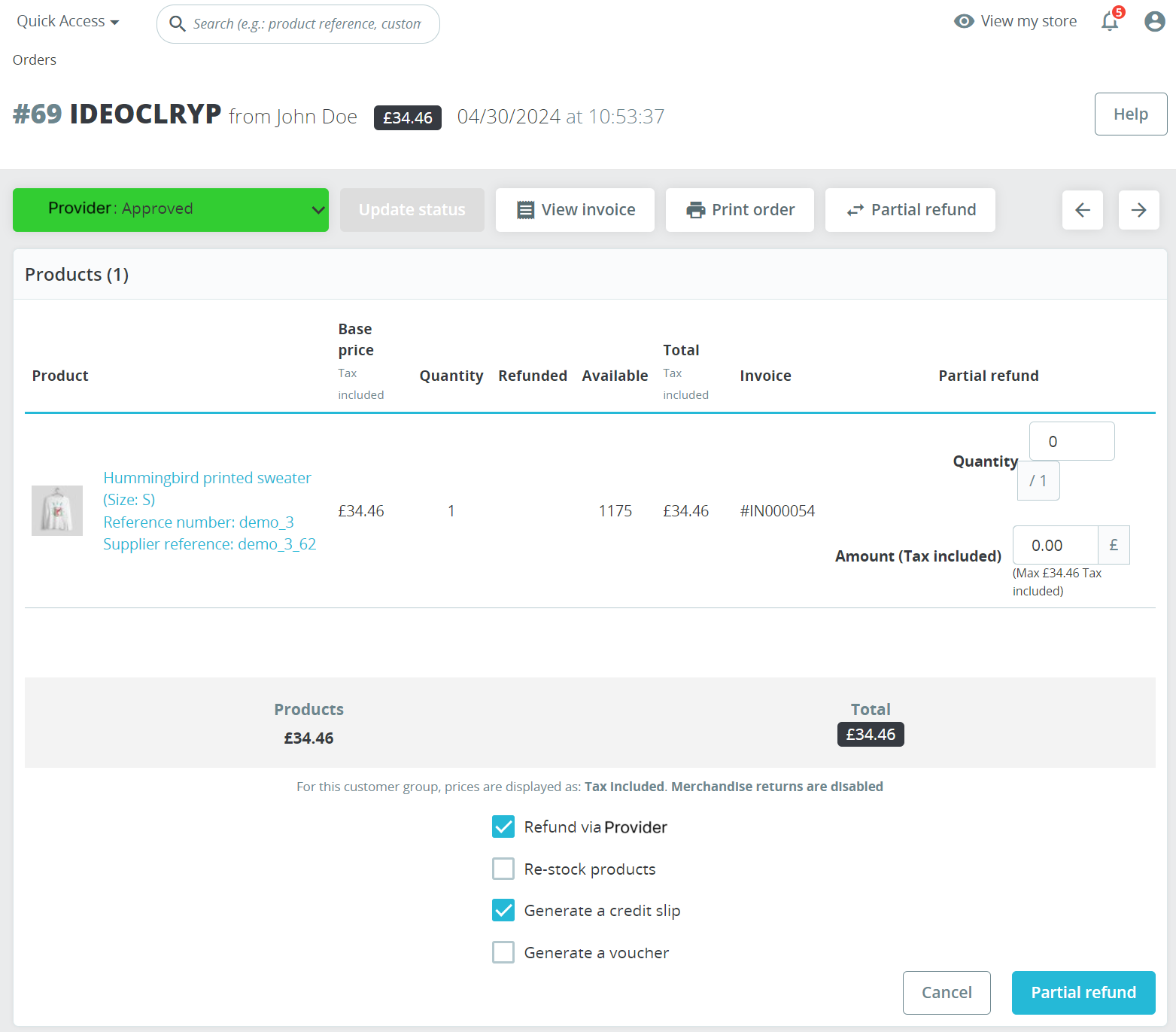
To make a refund via the Gate API or Dashboard of the Flashpay platform, use the procedures provided in the corresponding articles: Purchase refunds (for the Gate API) and Issuing refunds (for the Dashboard interface).
Usage
Overview
In order to process payments with actual debiting of funds, you should initially solve all organisational issues related to the interaction with Flashpay (submit the application for connecting to the payment platform, provide all necessary information, and receive a notification from Flashpay about the possibility to process payments, as well as the identifier and secret key of the production project). Along with that, it is necessary to provide the Flashpay technical support specialists with the name and URL of the web service for which the Flashpay payments plug-in will be used and the currency in which payments are to be processed.
After that, specify the identifier and secret key of the production project received from Flashpay in the parameters of the plug-in operation and set up other necessary parameters. (or check whether the current setup is relevant for working in real-life conditions). If later you need to suspend the plug-in operation, the plug-in methods can be disabled. Besides, if additional testing is needed, for example when setting up new features, the plug-in can be switched to using the test project.
Parameters setup
To set up the plug-in parameters, proceed as follows:
- Go to the plug-in operation parameters in the PrestaShop interface.
For this, proceed as follows:
- Select the Modules section and the Module Manager item in the IMPROVE section of the navigation menu.
- Search for the Flashpay payments plug-in on the page that opens and click the Configure button in the corresponding line.
- Set up the basic parameters of the plug-in operation in the General Settings tab:
- Project ID—the production project identifier.
- Secret key—the production project secret key.
- Language —the language in which the payment form is displayed.
- Set up the general parameters for using the payment method on its setup tab:
- Enabled—the feature for enabling a payment method to work via the plug-in.;
To enable a method, select the Enabled checkbox. By default, the checkbox is not selected.
- Title—the payment method name displayed on the checkout page in the web service.;
- Description—the text displayed to the customers when they select a certain payment method.Note: If during testing the fields Title and Description were used for notifying customers about ongoing testing activities, when switching to work in the production project, it is important to remove the notifications.
- Enabled—the feature for enabling a payment method to work via the plug-in.;
- Save the parameters of the plug-in operation.
For this, click the Save Settings button.
Processing purchases
If the web service and the plug-in have been set up correctly, purchases are processed automatically. Along with that, it is important to ensure that all necessary data is collected on the web service side.
In case of questions or issues related to purchase processing, contact the Flashpay technical support specialists.
Issuing refunds
After processing purchases, you can issue refunds as part of these purchases via the PrestaShop interface and, if relevant, via the interfaces Gate and Dashboard from Flashpay. Along with that, keep in mind that refunds can be made in case if orders in the PrestaShop interface have the statuses Flashpay: Approved or Flashpay: Partially refunded and if payments in the Flashpay payment platform have the statuses success, partially reversed, or partially refunded. Also, you can take into consideration that all capabilities and procedures of working with refunds in the production environment correspond to those available in the test environment.
Ensuring data synchronisation
When refunds are initiated via the interfaces of the Flashpay payment platform (Dashboard and the Gate API), order information in the PrestaShop interface is updated only if conditions that trigger callbacks from the payment platform have been configured. Thus, if the merchant needs to issue refunds via the Flashpay platform interfaces and monitor the order information via the PrestaShop interface, it is important to ensure that callbacks can be sent and received for automatic updates of information in the PrestaShop interface. For this, the following conditions must be met:
If the merchant needs to issue refunds via the Flashpay platform interfaces, it is important to ensure automatic updates of information in the PrestaShop interface. For this, the following conditions must be met:
- For the project in use, conditions that trigger callbacks sent from the payment platform to the PrestaShop CMS, to the URL specified on the page with the plug-in operation parameters (in the format of
https://<sitedomain>/en/module/Flashpay/callback), are configured.Information about working with conditions for sending callbacks is provided in a separate article.
- The configured conditions for sending callbacks do not have duplicates with the same payment type, event type, and payment method code.
Procedures
Refunds are available for purchases that have been processed and not fully refunded. On the Flashpay payment platform side, such purchases have the statuses success, partially reversed, and partially refunded. You can monitor the processing of refunds via the interfaces of the Flashpay platform and the PrestaShop interface.
To make a refund via the PrestaShop interface, proceed as follows:
- Open the tab of the order that should be refunded.
For this, select the Orders item in the similarly-named section of the SELL section and click the line of the needed order.
- Initiate the refund.
For this, proceed as follows:
- Open the Products panel by clicking the Partial refund button.
- Specify the refund amount in the Amount (Tax included) field and select the Refund via Flashpay checkbox.
- Click the Partial refund button in the bottom right corner of the Products panel.
- Ensure that the refund has been made.
For this, you can check that the order status has changed to
Flashpay: Partially refunded(in case of a partial refund) orFlashpay: Refund(in case of a full refund).
To make a refund via the Gate API or Dashboard of the Flashpay platform, use the procedures provided in the corresponding articles: Purchase refunds (for the Gate API) and Issuing refunds (for the Dashboard interface).
Monitoring payments and orders
Information about payments processed with the use of the Flashpay payments plug-in and about the corresponding orders can be monitored via the PrestaShop interface by using the tools of the Orders section in the similarly-named subsection, while more detailed information about payments and refunds can be obtained via Dashboard (details) and Data API (details) from Flashpay.
In the PrestaShop interface, the Orders subsection contains orders register with main details about every order including the capabilities to search and filter data, open the tabs of separate orders, and perform various actions.
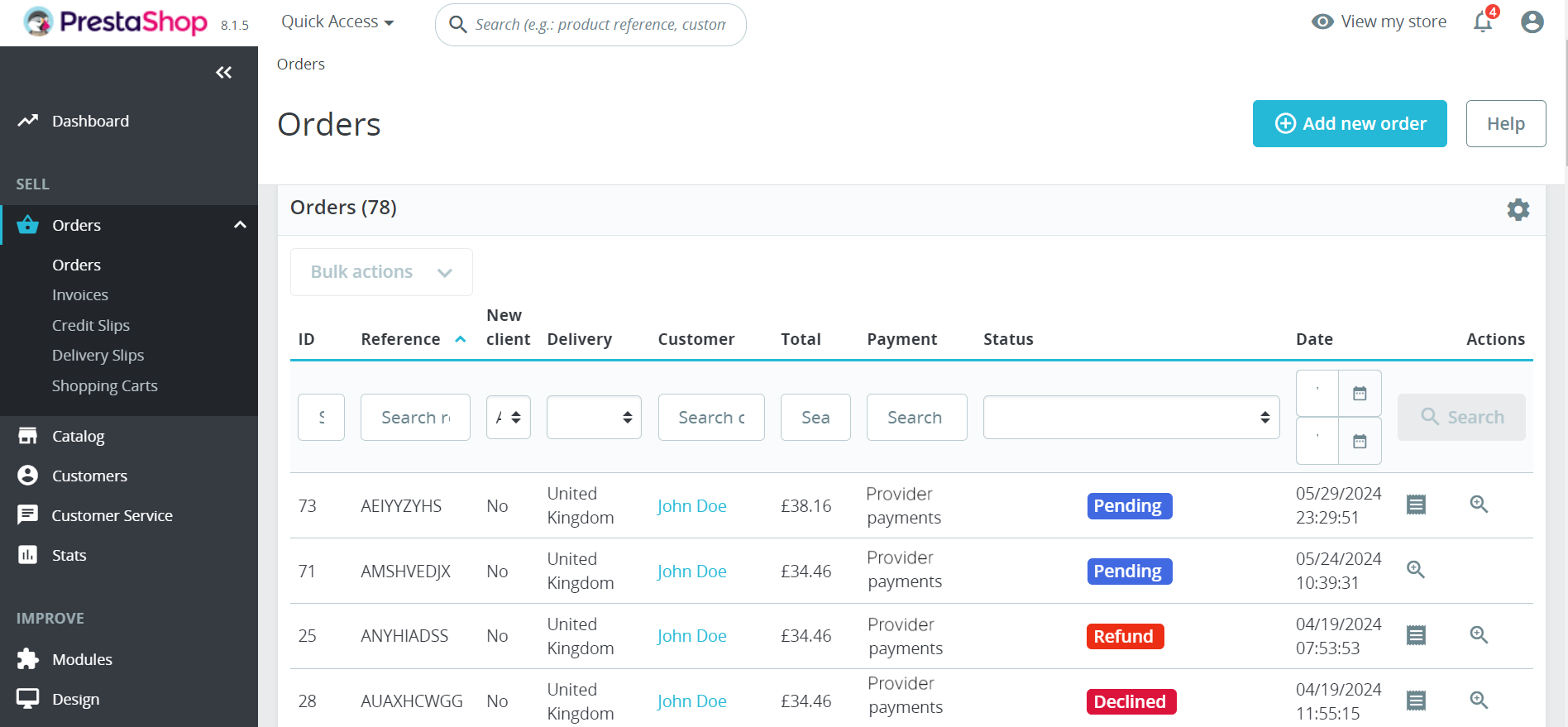
Clicking on an order's entry leads you to the order's tab providing the order details and the capability to make refunds.To open the tab of a particular order, click on the order's entry (or the button  ) in the register. Each tab, among other functions, provides order details (such as the information about customers, purchased products, and shipping methods) as well as the capability to make refunds.
For information about the payment initiated via the plug-in from Flashpay, use the Payment section.
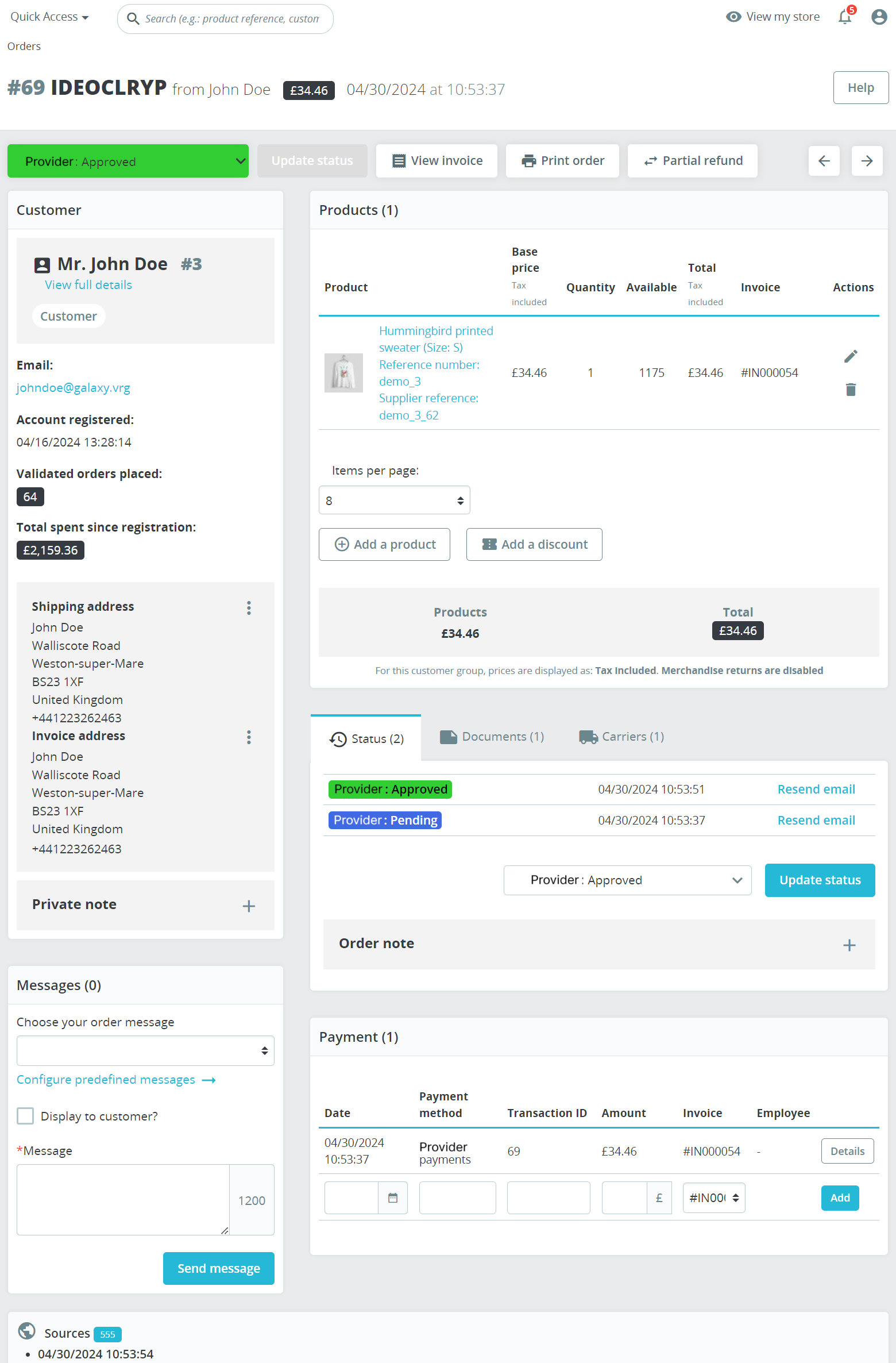
More detailed information about working with orders can be obtained by using the Help button in the similarly-named subsection in the Orders section in the PrestaShop interface.